

Computer programs use variables to store information.
Variables could be used to store the score in a game, the number of cars in a car park or the cost of items on a till. They work in a similar way to algebra, where a letter in your code can stand for a number.


Take some time to understand the four different inputs.
Button 1 and Button 2 are normal inputs but, when the wheel is rotating, you may notice that the Steps input flashes on each time a seat passes over the steps. Also, if you click on the Gate with the left mouse button you will find that the Gate input comes on when the gate is shut.
The Steps and Gate inputs are called virtual inputs. They cannot be changed by directly clicking on the mimic, but are changed by features within the mimic itself.
To attract the crowd, use the Button 1 input to control the lighting effects on the wheel's frame. This might be a simple on/off routine but flashing sequences are more exciting. Use subroutines.
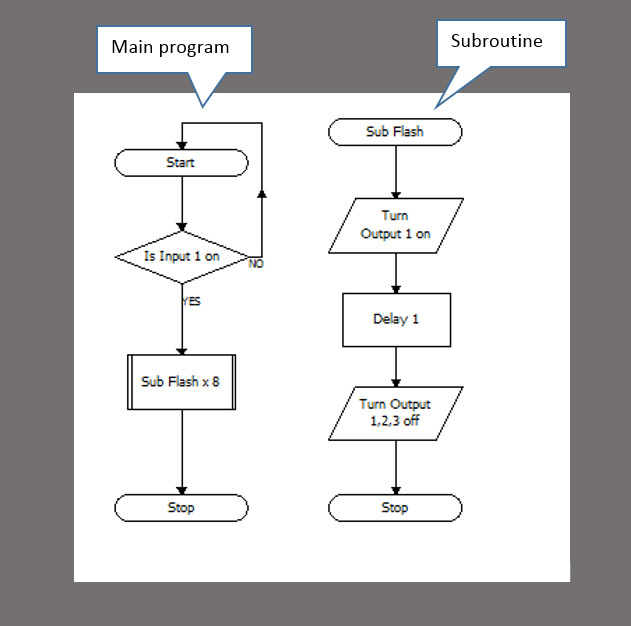
Use the Button 2 input to control the simple Go/Stop movement of the wheel. You could perhaps make the wheel speedup and slowdown in stages by changing the motor power.


Modify activity 2 to include the safety feature of the gate so that the gate must be closed before the wheel will start (i.e. both Button 2 and Gate are on). The wheel should stop if either Button 2 is turned off, or the Gate is opened (i.e. if either Button 2 or Gate are off).
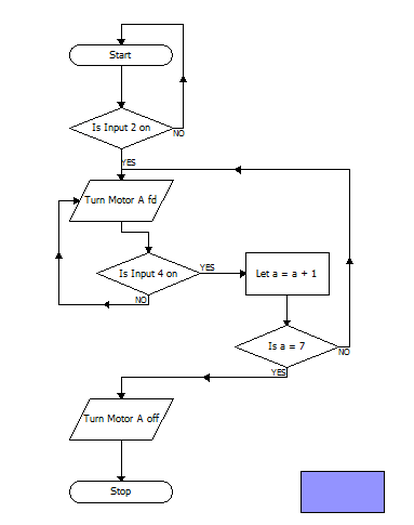
Use variable x to count how many times the ride is used. This could be done either by adding the increment Let instruction to the existing flowchart from Activity 3, or by creating a separate flowchart, as shown here.

Construct this counting program to increase the variable y each time a seat passes the steps, i.e. each time the virtual input goes off and on.
Since there are 7 seats, each rotation of the wheel should increase the variable y by 7.
Now modify your program by introducing a decision symbol, to stop the wheel automatically after it has rotated 3 times.
Now that you have learned how to use the Steps input, create a subroutine which rotates the wheel and stops briefly at each of the seven seats for passengers to get on or off.
Call this subroutine twice; once at the beginning to load the wheel with passengers, and then at the end to unload.
To keep passengers safe the wheel should gradually speed up and slow down.
While it is possible to change the speed with a sequence of Output symbols with speeds of 10%, 20%, 30% etc. it is much more compact and reusable to employ a variable.
Create the new variable s and use a speed of s% in the output symbols in the subroutines.
When running the program, observe the Wheel motor in the status panel. The size of the bar indicates the speed of the motor.


You should now be able to assess yourself against your objectives:


