Computer Science LearnITWithMrC ⛯ Year 7 Year 8 Year 9 GCSE
ICT
Responsive image

Lesson 1 - Formatting and Formula

How spreadsheets work

The most popular spreadsheet program is Microsoft Office Excel. Free alternatives include OpenOffice Calc and Google Docs, which runs in a web browser.

Workbooks and worksheets

A spreadsheet file is made up of one workbook and multiple worksheets. Worksheets appear as tabs at the bottom of a workbook. They can be reordered and renamed.

Columns, rows and cells

Every cell in a spreadsheet or worksheet has a unique cell reference, which consists of a letter and a number. The letter refers to the column and the number refers to the row.

To select a cell, left click on it. To enter data, double-click it. To select multiple cells, click and hold the left mouse button and drag it in the direction of the cells you want to select..

Entering data into a cell

Data can be typed directly into a cell or into the formula bar. To the left of the formula bar you will find the name box. It shows the selected cell.

The three types of data you can enter into a cell are data, labels and formulas.

  • Data - values, usually numbers but can be letters or a combination of both.
  • Labels - headings and descriptions to make the spreadsheet easier to understand.
  • Formulas - calculations that update automatically if referenced data changes.

How spreadsheets work

The most popular spreadsheet program is Microsoft Office Excel. Free alternatives include OpenOffice Calc and Google Docs, which runs in a web browser.

Workbooks and worksheets

A spreadsheet file is made up of one workbook and multiple worksheets. Worksheets appear as tabs at the bottom of a workbook. They can be reordered and renamed.

Columns, rows and cells

Every cell in a spreadsheet or worksheet has a unique cell reference, which consists of a letter and a number. The letter refers to the column and the number refers to the row.

To select a cell, left click on it. To enter data, double-click it. To select multiple cells, click and hold the left mouse button and drag it in the direction of the cells you want to select..

Entering data into a cell

Data can be typed directly into a cell or into the formula bar. To the left of the formula bar you will find the name box. It shows the selected cell.

The three types of data you can enter into a cell are data, labels and formulas.

  • Data - values, usually numbers but can be letters or a combination of both.
  • Labels - headings and descriptions to make the spreadsheet easier to understand.
  • Formulas - calculations that update automatically if referenced data changes.
.

Nature

Elements of a Spreadsheet

How spreadsheets work

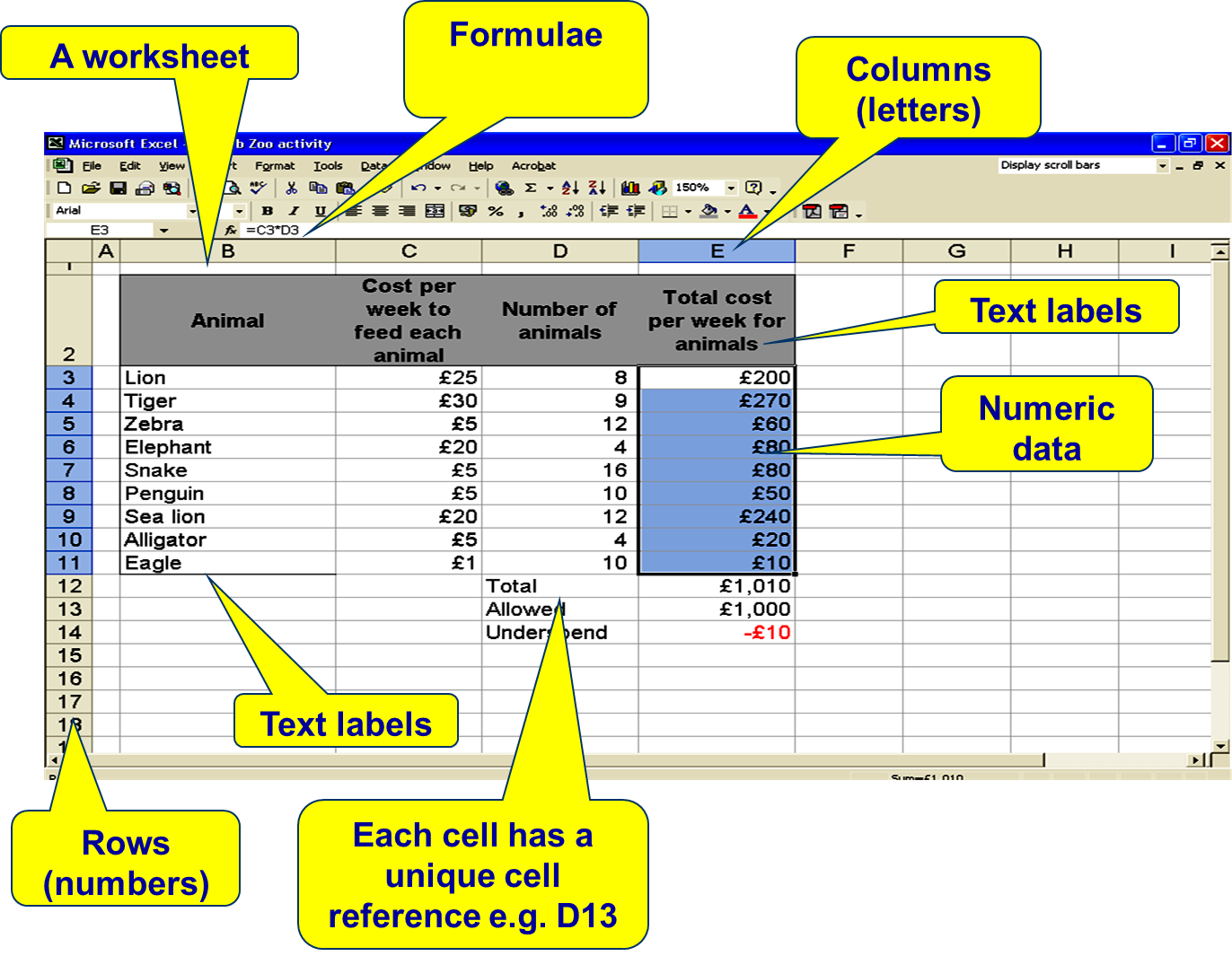
A spreadsheet appears as a grid - each row has its own number and each column its own letter. This labelling of rows and columns is used to give each cell a cell address or reference, for example, C5 means column C, row 5.

It is also possible to refer to a range of cells collectively, ie E4:E12 includes E4, E12 and all of the cells in-between.

Cells can contain numbers, text or formulae.


stay safe from predators

Formatting a spreadsheet

Complete the task below click here to open the spreadheet

Responsive image
It should go from looking like this         to looking like this.
Responsive image

Task 2 - Using formula

Complete the Mario formula task click here to open the spreadsheet

Responsive image

  • Learning Objectives

  • I can tell the difference between the terms 'row', 'column' and 'cell'
  • I can use simple formulae using + - * etc
  • I can use SUM and/or the Autosum feature.

How spreadsheets work

The most popular spreadsheet program is Microsoft Office Excel. Free alternatives include OpenOffice Calc and Google Docs, which runs in a web browser.

Workbooks and worksheets

A spreadsheet file is made up of one workbook and multiple worksheets. Worksheets appear as tabs at the bottom of a workbook. They can be reordered and renamed.

Columns, rows and cells

Every cell in a spreadsheet or worksheet has a unique cell reference, which consists of a letter and a number. The letter refers to the column and the number refers to the row.

To select a cell, left click on it. To enter data, double-click it. To select multiple cells, click and hold the left mouse button and drag it in the direction of the cells you want to select..

Entering data into a cell

Data can be typed directly into a cell or into the formula bar. To the left of the formula bar you will find the name box. It shows the selected cell.

The three types of data you can enter into a cell are data, labels and formulas.

  • Data - values, usually numbers but can be letters or a combination of both.
  • Labels - headings and descriptions to make the spreadsheet easier to understand.
  • Formulas - calculations that update automatically if referenced data changes.